
Arch Linux Install

Documentation on installing Arch Linux
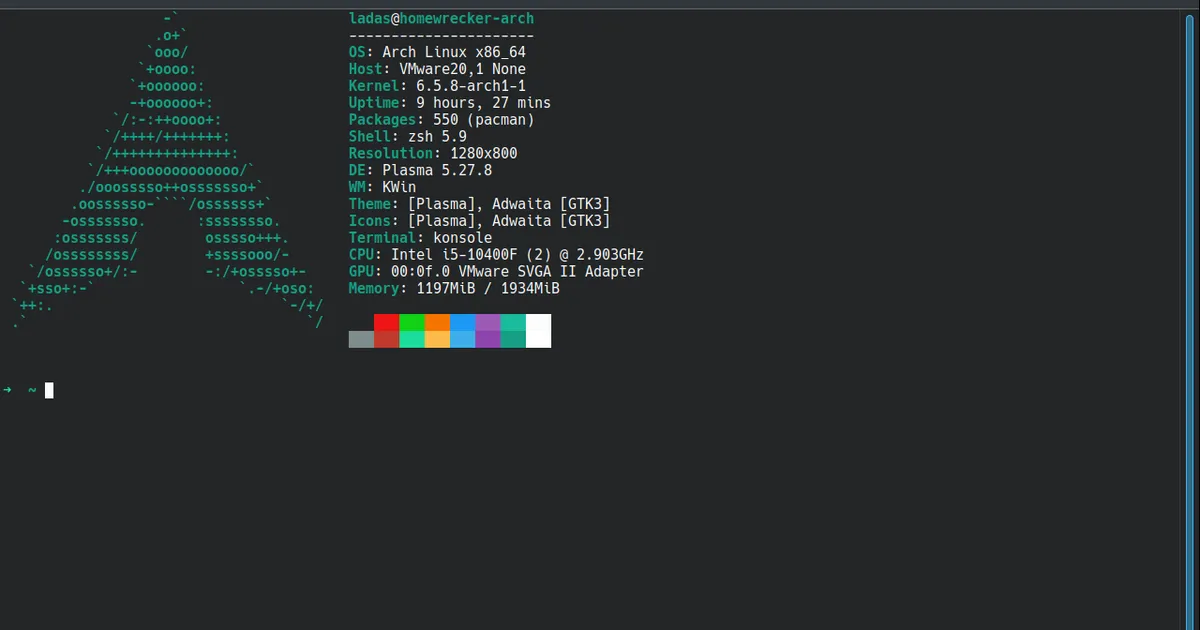
Personalized Arch Linux Install
The choices made in this guide are based on my personal preferences. The Arch Wiki is a great resource for comprehensive information on the installation process.
Pre-Install
- Download Arch Linux ISO
- Create VM with 2 cores, 2GB RAM, 20GB HDD
- Mount ISO to VM
- Change .vmx file to boot from EFI append the following line
firmware = "efi"- Boot VM
Boot and Prepare Installation Media
Check boot mode
cat /sys/firmware/efi/fw_platform_size# Expected response is 64, if 32 then vm not booted in UEFI mode.Check Network
ping archlinux.orgUpdate System Clock
timedatectlPartition the disk
Identify connected Disks
fdisk -l# In this instance /dev/sda is the disk we will be installing to.Partition Disk with fdisk
fdisk /dev/sdaFdisk commands to create 500MiB EFI partition, and create another partition with the remainder.
g # Sets GPT partition tablen -> +500M # partition 500MiBt -> 1 # Set 500MiB partition to EFIn -> defaults # Default options partition the remained as linux FSw # Write ChangesFormat Root partition
mkfs.ext4 /dev/sda2Format EFI partition
mkfs.fat -F 32 /dev/sda1Mount the file systems
mount /dev/sda2 /mntmount --mkdir /dev/sda1 /mnt/bootInstall to disk & Basic setup
Install essential packages
pacstrap -K /mnt base linux linux-firmware networkmanager vim man-db man-pages texinfoGenerate fstab
genfstab -L /mnt >> /mnt/etc/fstab# I used -L to use labels instead of UUIDsChroot into the new filesystem
arch-chroot /mntLink Timezone
ln -sf /usr/share/zoneinfo/America/North_Dakota/Center /etc/localtimehwclock --systohcLocalization
Here we set language and locale. I am using en_US.UTF-8 UTF-8.
vim /etc/locale.gen# Uncomment en_US.UTF-8 UTF-8echo 'LANG=en_US.UTF-8' > /etc/locale.confSet Hostname
echo 'homewrecker-arch' > /etc/hostnameChange Root password
passwdInstall bootloader
pacman -Sy grub efibootmgrgrub-install --target=x86_64-efi --efi-directory=boot --bootloader-id=GRUBgrub-mkconfig -o /boot/grub/grub.cfgExit Chroot & Reboot…
Start NetworkManager service
systemctl enable NetworkManagersystemctl start NetworkManagerPost Install customization
The following sections are requirements for a systems administration class I am taking.
Add Desktop Environment
pacman -Sy xorg-serverpacman -Sy open-vm-tools xf86-input-vmmouse xf86-video-vmwarepacman -Sy nvidiapacman -Sy plasma-desktoppacman -Sy sddm sddm-kcmpacman -Sy konsolesystemctl enable sddmsystemctl start sddmAdd users
useradd -m codiuseradd -m ladaspasswd codipasswd -e codipasswd ladaspacman -S sudo vivisudo /etc/sudoers# uncomment %sudo ALL=(ALL) ALLgroup add sudousermod -aG sudo ladasusermod -aG sudo codiCustomize Terminal
pacman -Sy zshzsh# run through setupusermod --shell /bin/zsh ladas# Install oh-my-zshsh -c "$(curl -fsSL https://raw.githubusercontent.com/ohmyzsh/ohmyzsh/master/tools/install.sh)"# Step through installerAdd ssh
sudo pacman -Sy opensshMisc Customization
pacman -Sy firefox